From Scanned to Editable: A Smart Way to Handle Paper
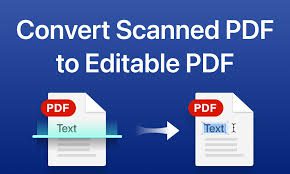
Nowadays, dealing with paper documents like a printed letter, receipt, or even a newspaper article can be a real struggle when you want to keep or reuse them. I’ve often found myself holding onto a valuable invoice or an important document just because I was not sure how to make it digital. That’s when I realized the power of OCR (Optical Character Recognition). It’s a simple, quick, and incredibly smart technology that helps you extract text from a scanned image, PDF, or any file using just a scanner or even your mobile phone. Once the scan is done, the OCR converter works to identify each character and turn your printed content into editable and usable text. The entire process takes only a few moments, and what once felt like cluttered paper becomes preserved, convertible, and ready to be modified.
I personally use a reliable online tool to convert my original, scanned PDF into a format that I can edit with ease. Tools like PDF to Text do not just offer the simplest solution, they actually open up new possibilities. You can effectively transform articles, texts, or even handwritten notes into professional, digital documents. Whether you are working on old images, scanning texts from a letter, or cleaning up a printed invoice, this method quickly turns physical clutter into digital clarity. And trust me, once you start converting, you will never want to type things by hand again. It truly simplifies the way we work with content today. Try it yourself using this Scanned PDF to Text Converter.
Smart Ways to Convert a PDF to Text
If you have ever tried to digitize your old paper documents, you know how frustrating it can be to deal with low-quality scans or unclear handwriting. I remember having stacks of texts that needed converting—some were machine-written, others handwritten. The key to great results lies in using the right tool. First, make sure your picture is clear and your document is in good condition. The best performances come from PDF files that contain digital or selectable text. If not, you will need an OCR engine that can handle scanned images. Tools like the one on TopToolsPro support different modes including Standard OCR, Advanced AI-OCR, and Advanced AI-OCR+, which are ideal for imperfect, poorly lit documents or those with shadows.
To begin, upload your file to the converter. You can then select from different options based on the type of character recognition required. If you’re working with photographs like street signs, go for Photo OCR, which is specialized for such tasks. Just press the START button to begin the conversion. After a few seconds, download your new, editable version. It works right from your browser, needing no installation, registration, or extra apps—just a stable internet connection. And yes, no worries about malware or losing storage space on your device. With ongoing technological advances in this field, even writing that was once hard to interpret is now much easier to work with.
Optimize Your File Before and After Conversion
Before you convert any image or scan, focus on improving the quality. I have found that increasing the contrast between text and background helps the OCR programs better distinguish characters, even when the documents are faded, crooked, or slightly distorted. Features like deskew are valuable options to fix alignment issues on the side of your file. Whether it is a simple TXT output or a Word, DOC, or DOCX file, the final formatting and writing should remain readable. Always consider necessary factors like skewing, low resolution, or poor lighting. This makes the operation more reliable when trying to retain the original look, especially if the graphics and languages the file contains are complex.